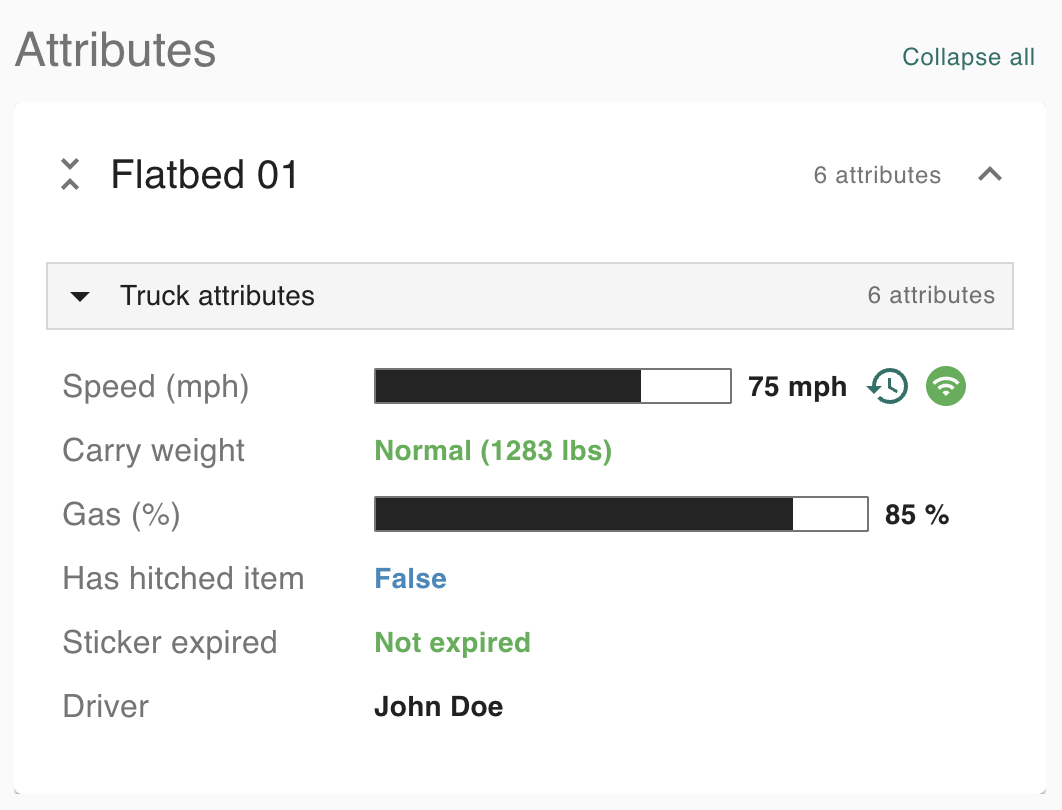
Administrators can change how attribute categories appear when viewing an asset’s details. By default, the categories appear as so:
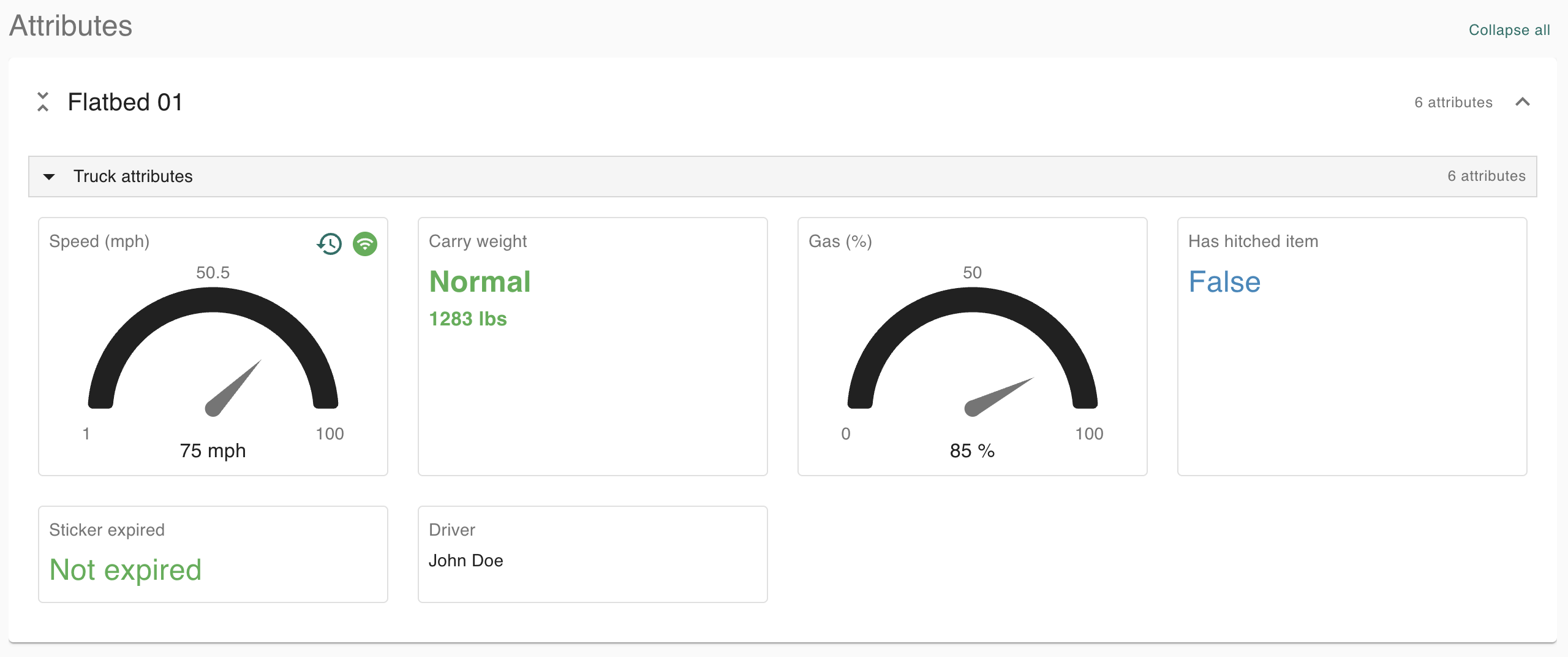
However, administrators can change the size of widgets in each category, as well as choosing between a grid and list view.
Opening asset type category settings
-
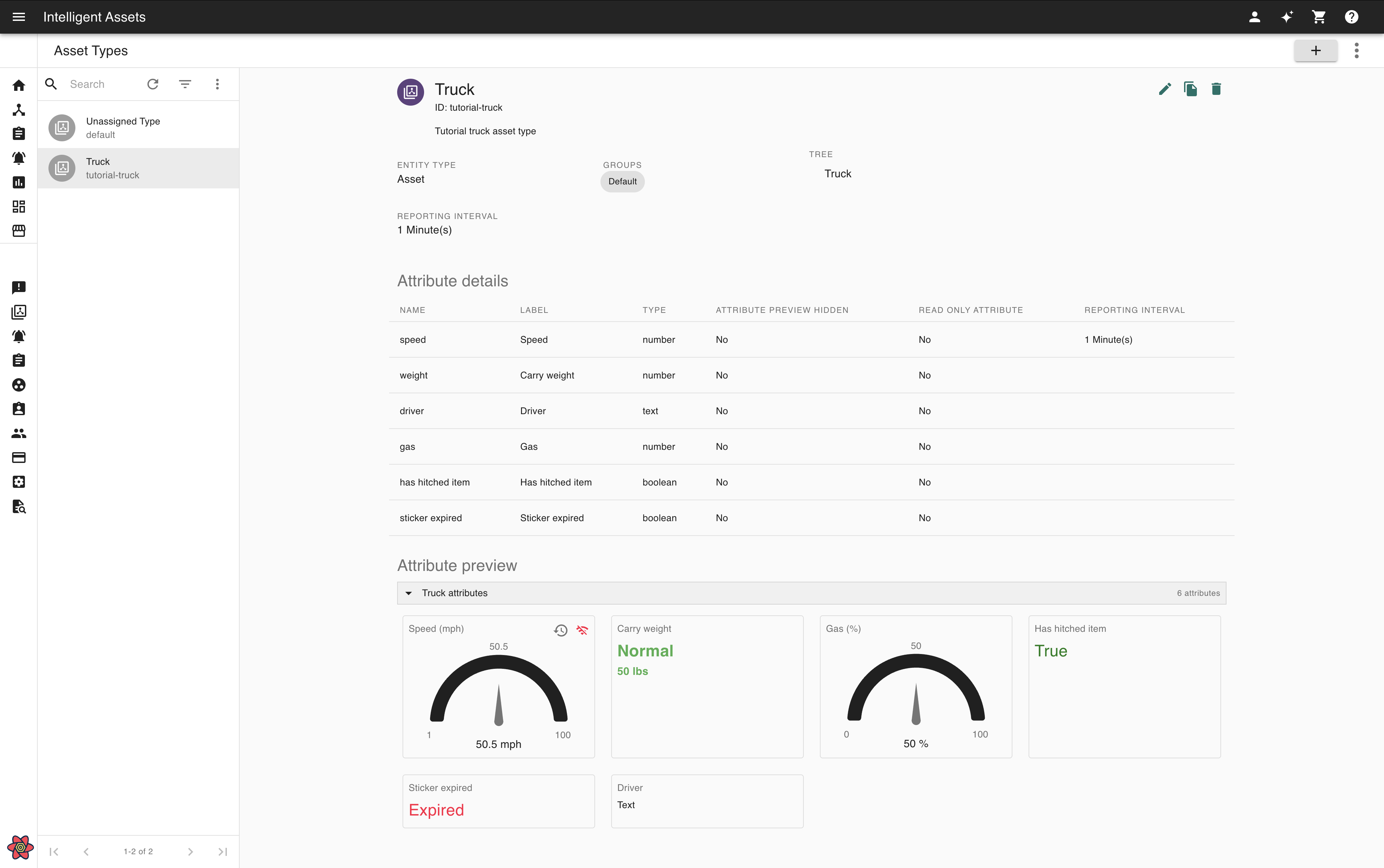
Go to the Asset Types page and select the asset type in question.
-
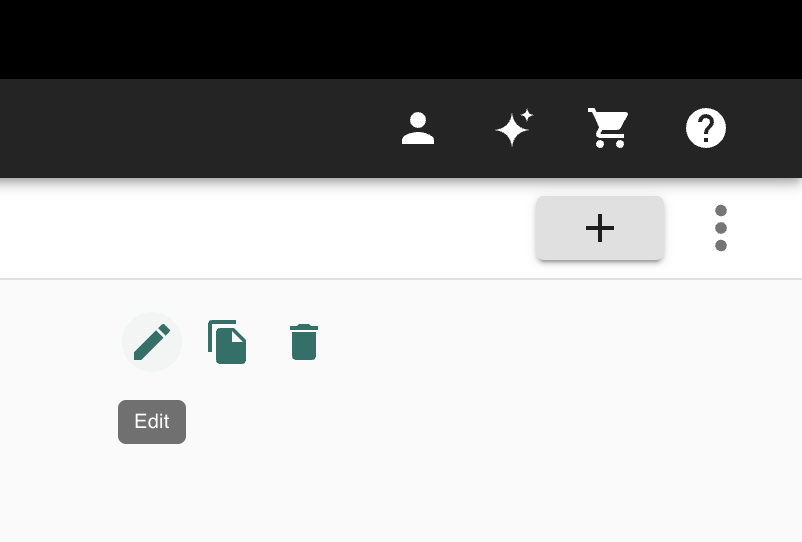
Select the Edit icon button in the top-right hand corner of the page. This will open the asset type edit dialog.
-
Select the Categorize step on the left-hand side of the newly-opened menu.
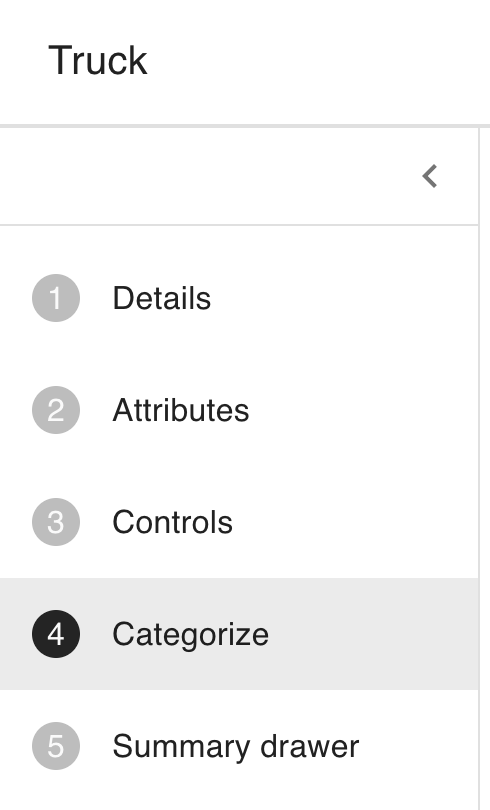
-
You will now find yourself at the Categorize asset type edit menu.
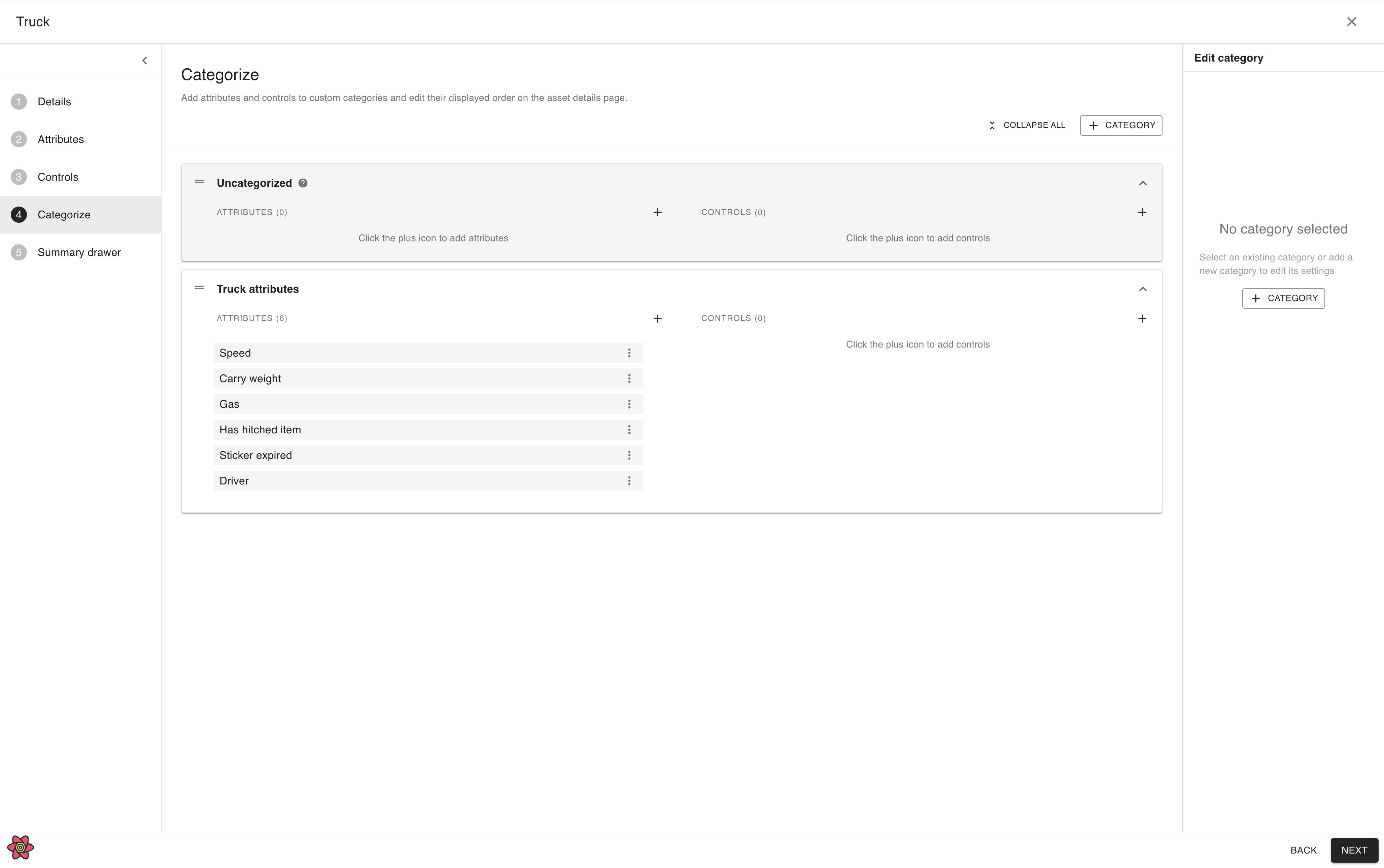
Changing how categories display
Grid view
In grid view, a category of attributes will display as a grid of widgets. This is the default setting.
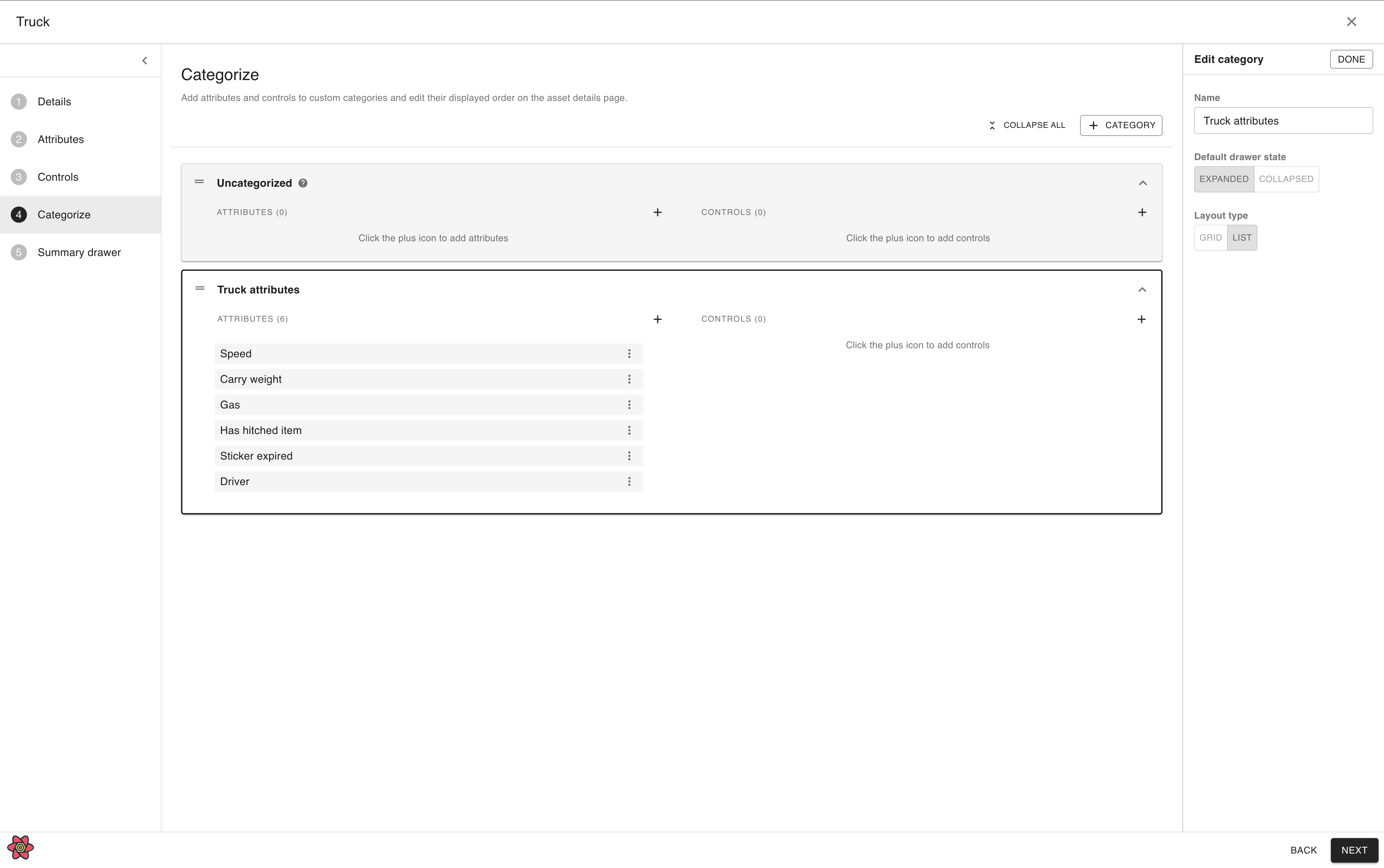
To change a category of attributes to display as a grid, first into the category to select it for editing:
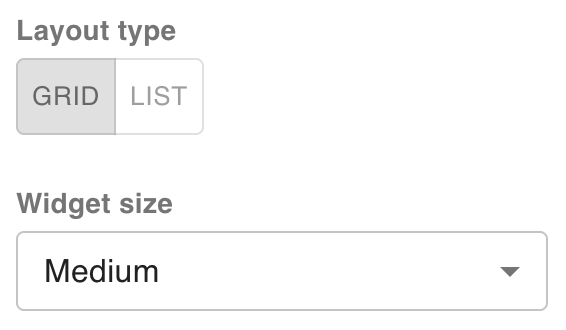
Then, in the Edit category panel on the right, select Grid in the button group under Layout type:
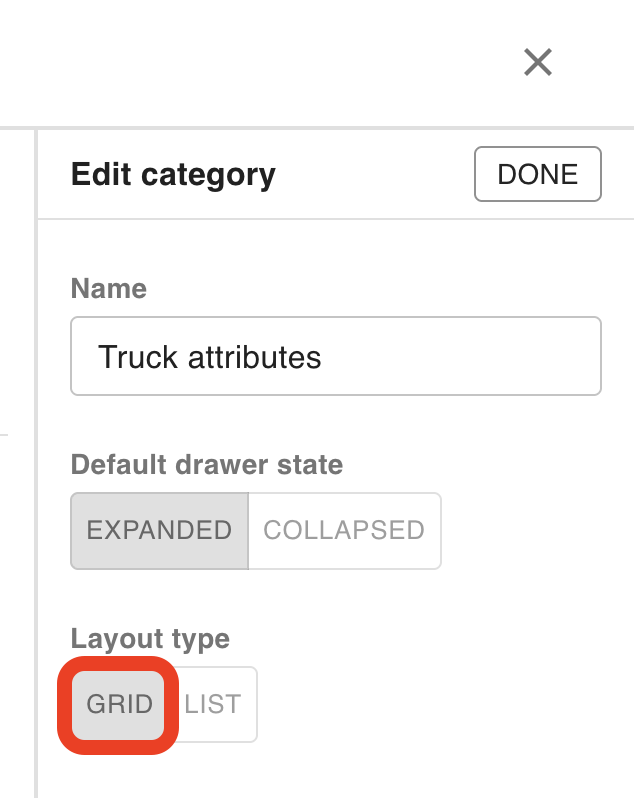
This will cause the category to appear as a grid layout. Underneath this setting, you have three options for widget size, with Medium selected as the default:
On large displays, the three options look as follows:
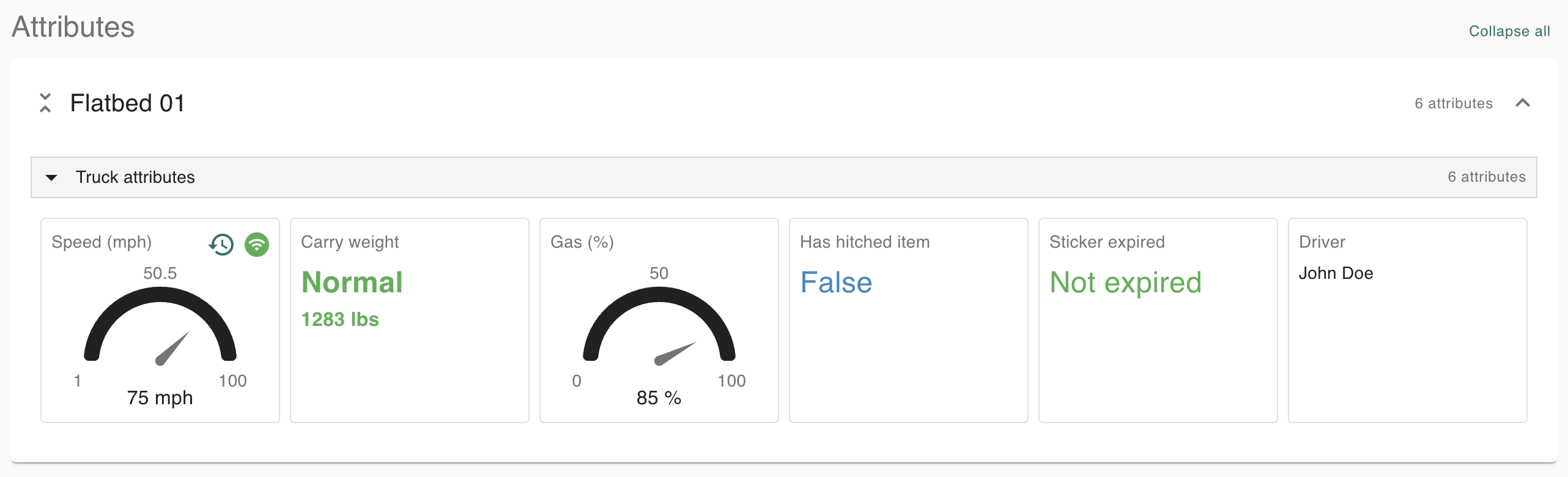
Small: on wide displays, 6 widgets will appear per row.
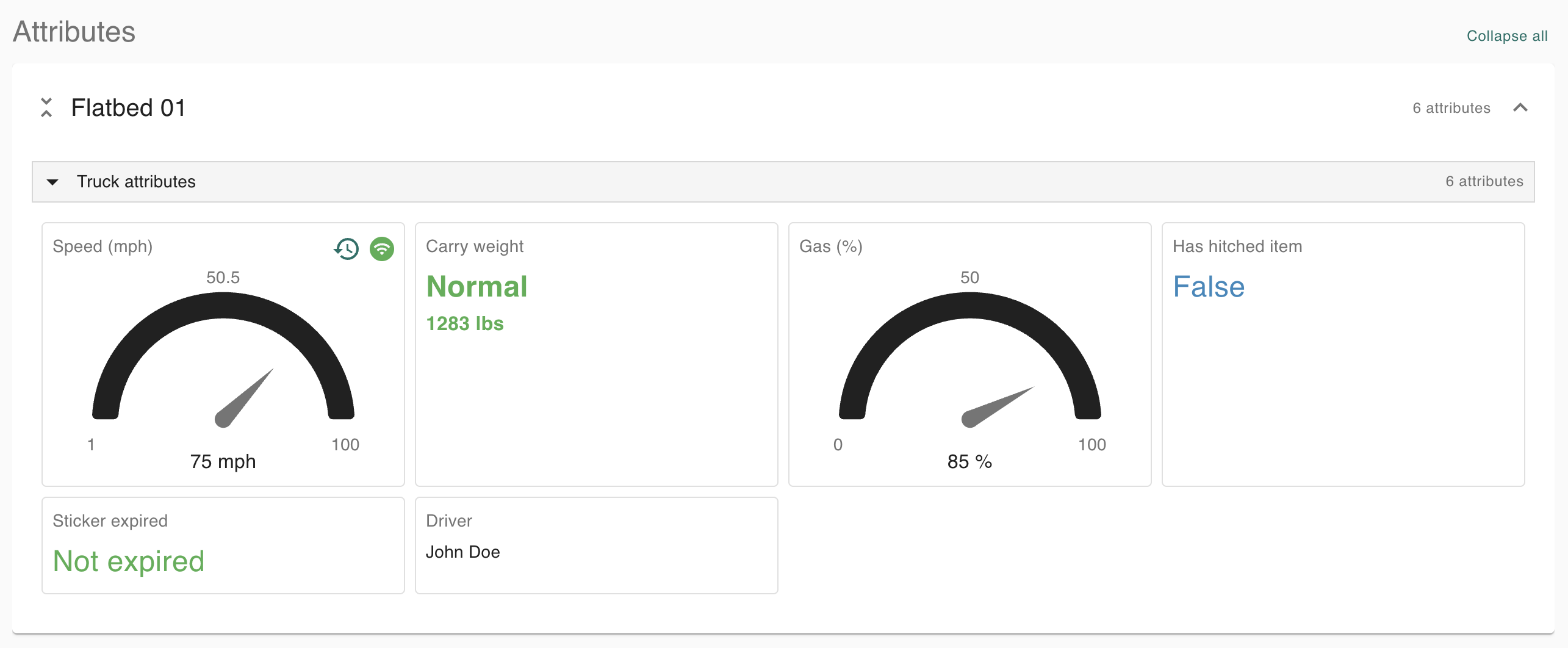
Medium (default): on wide displays, 4 widgets will appear per row.
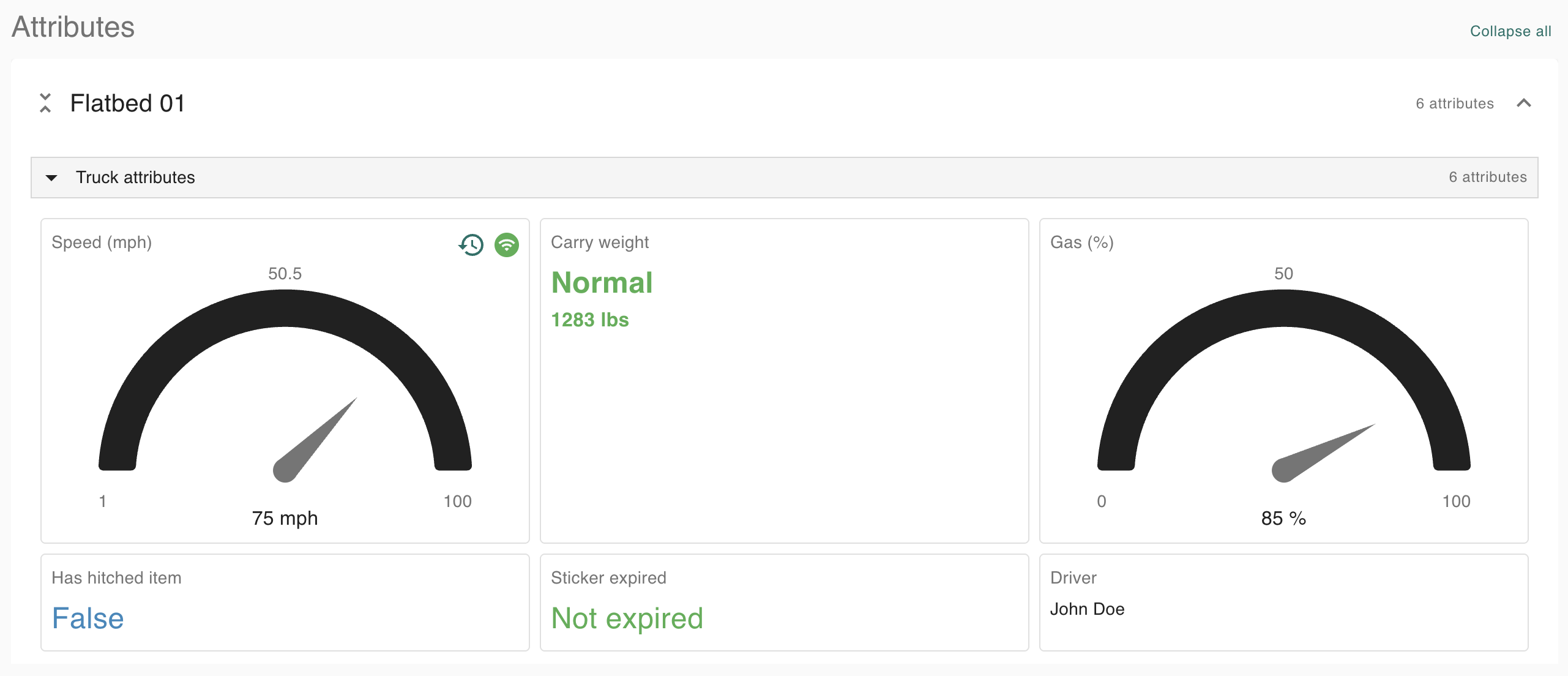
Large: on wide displays, only 3 widgets will appear per row, in order to maintain a large per-widget size.
List view
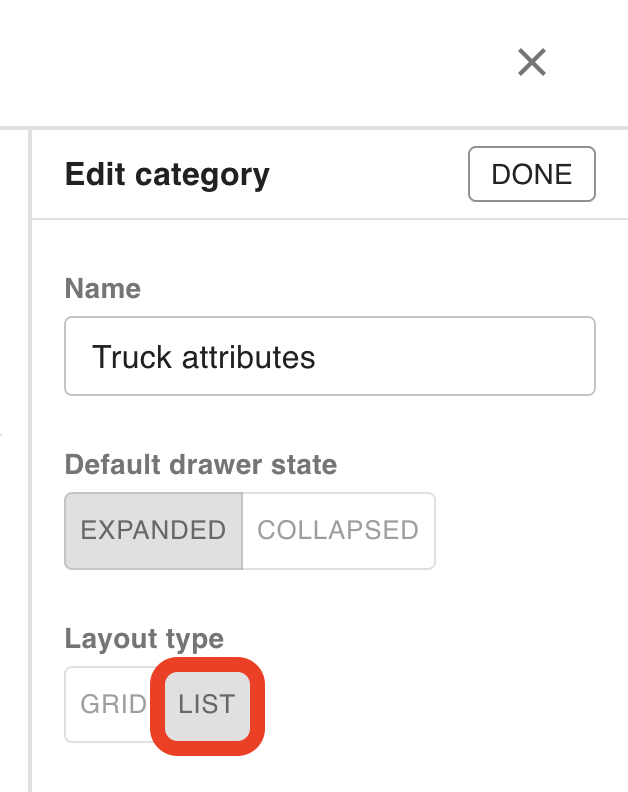
In list view, a category of attributes will display wide and short in a list, showing extra-small versions of each widget. To select the list view, select List in the button group under Layout type:
This will cause that section to appear as a list of extra-small widgets. On wide displays, this will appear as columns:
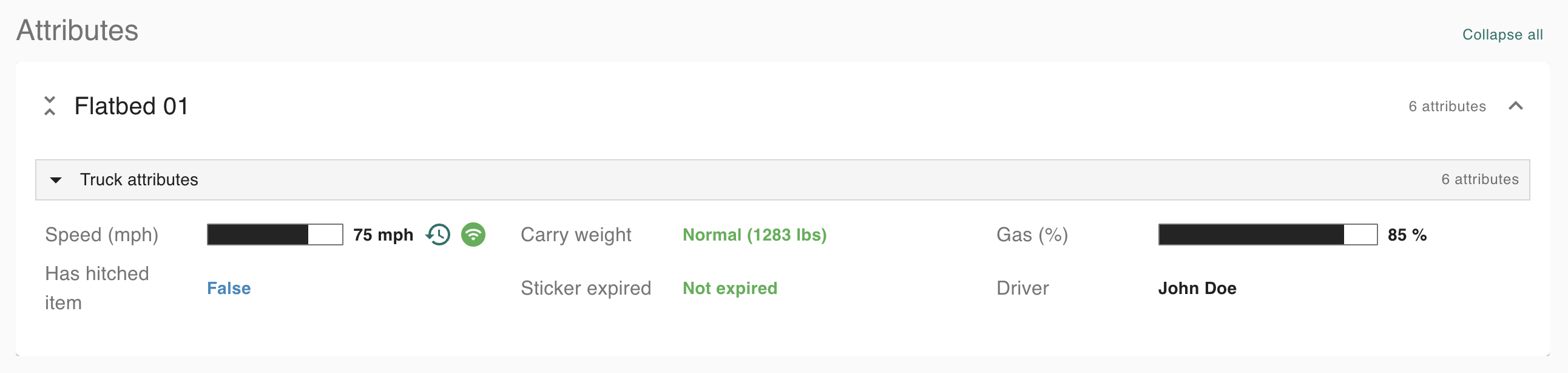
As the screen size shrinks, these columns will merge into a single list: