
A configuration template holds one set of settings for one device type. You can use a template to quickly apply settings to many assets or to save specific configurations for future use.
Open the templates page
-
Click your user icon, then click Settings.
-
Click Device Config under System.
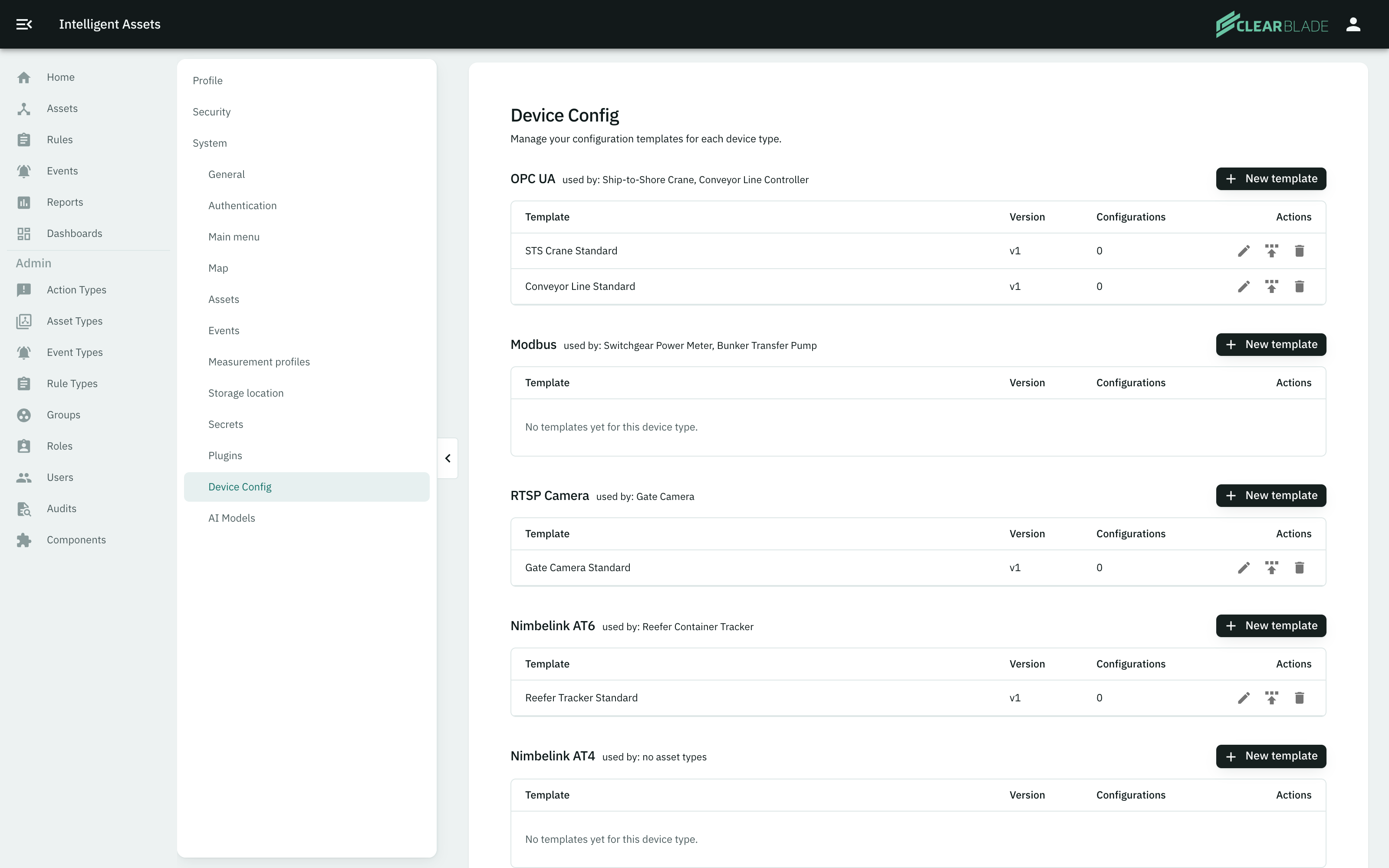
The page groups templates by device type. A device type appears on this page only when a component for it is installed (see Admin components).
Create a template
-
Find the device type you want.
-
Click New template beside it.
-
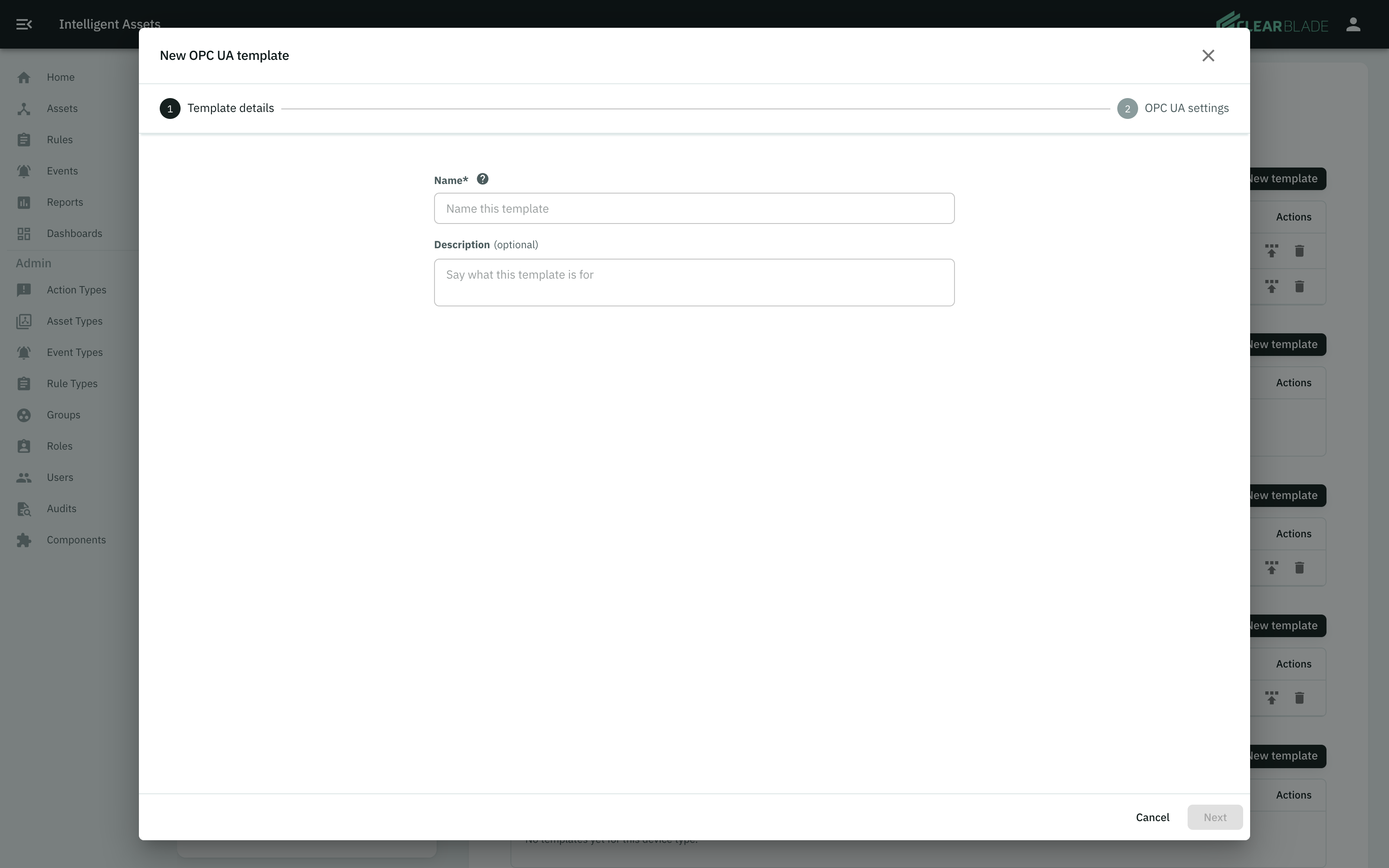
Enter a name. Enter a description if you want one.
-
Click Next.
-
Fill in the settings. The settings differ for each device type.
-
Click save.
Edit a template
Click the pencil icon in the template's row. Change the name, the description or the settings, then save.
An edit changes the template only. Assets that already hold a configuration from this template keep the configuration they have. To push the change to those assets, apply the template again.
Apply a template to assets
You can apply a template from the templates page or from the assets list.
From the templates page
-
Click the apply icon in the template's row.
-
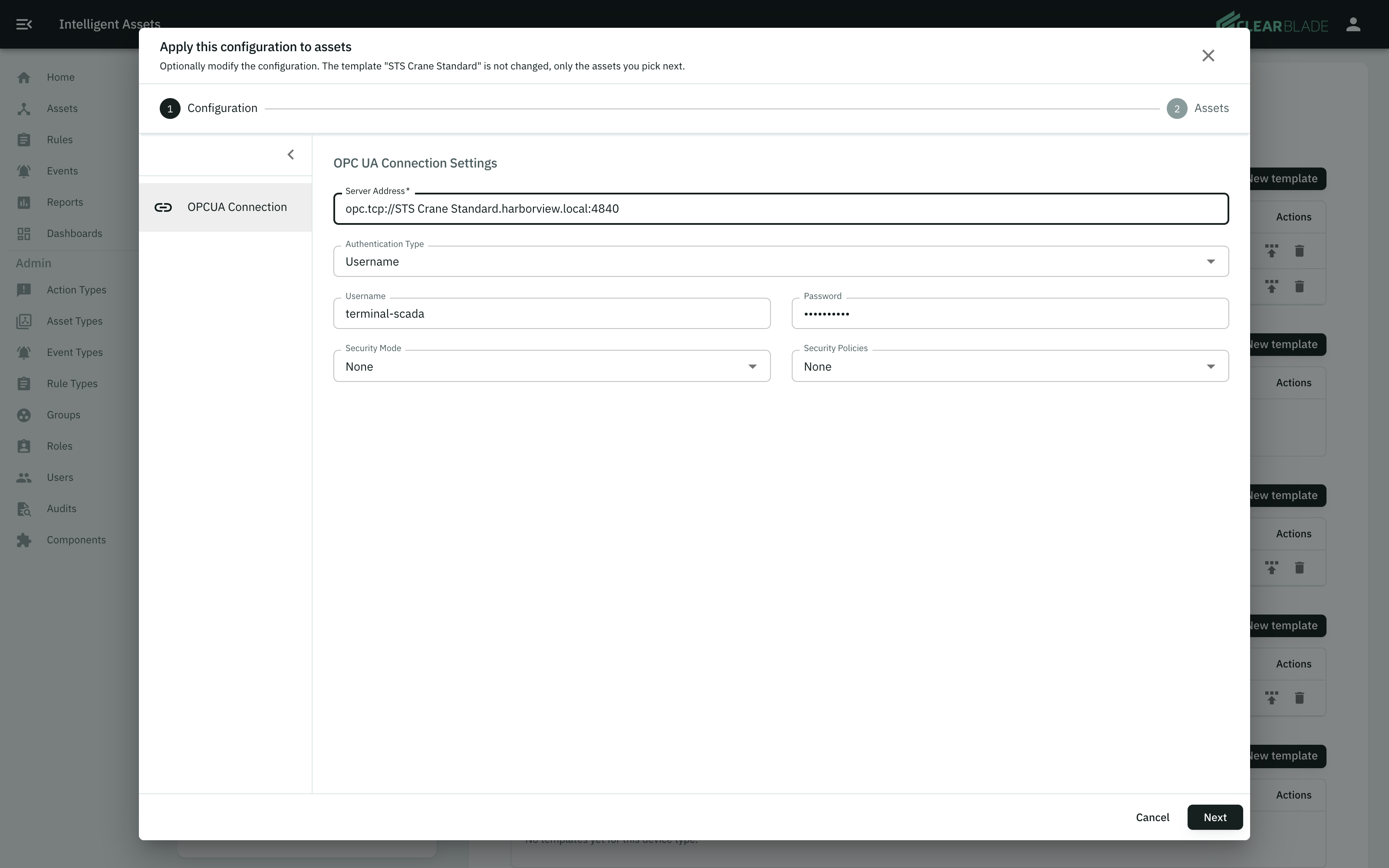
Change the settings if you want to. The template itself does not change.
-
Click Next.
-
Select the assets. The list shows only assets of a type that uses this device type.
-
Click save.
From the assets list
-
Click Assets in the left menu.
-
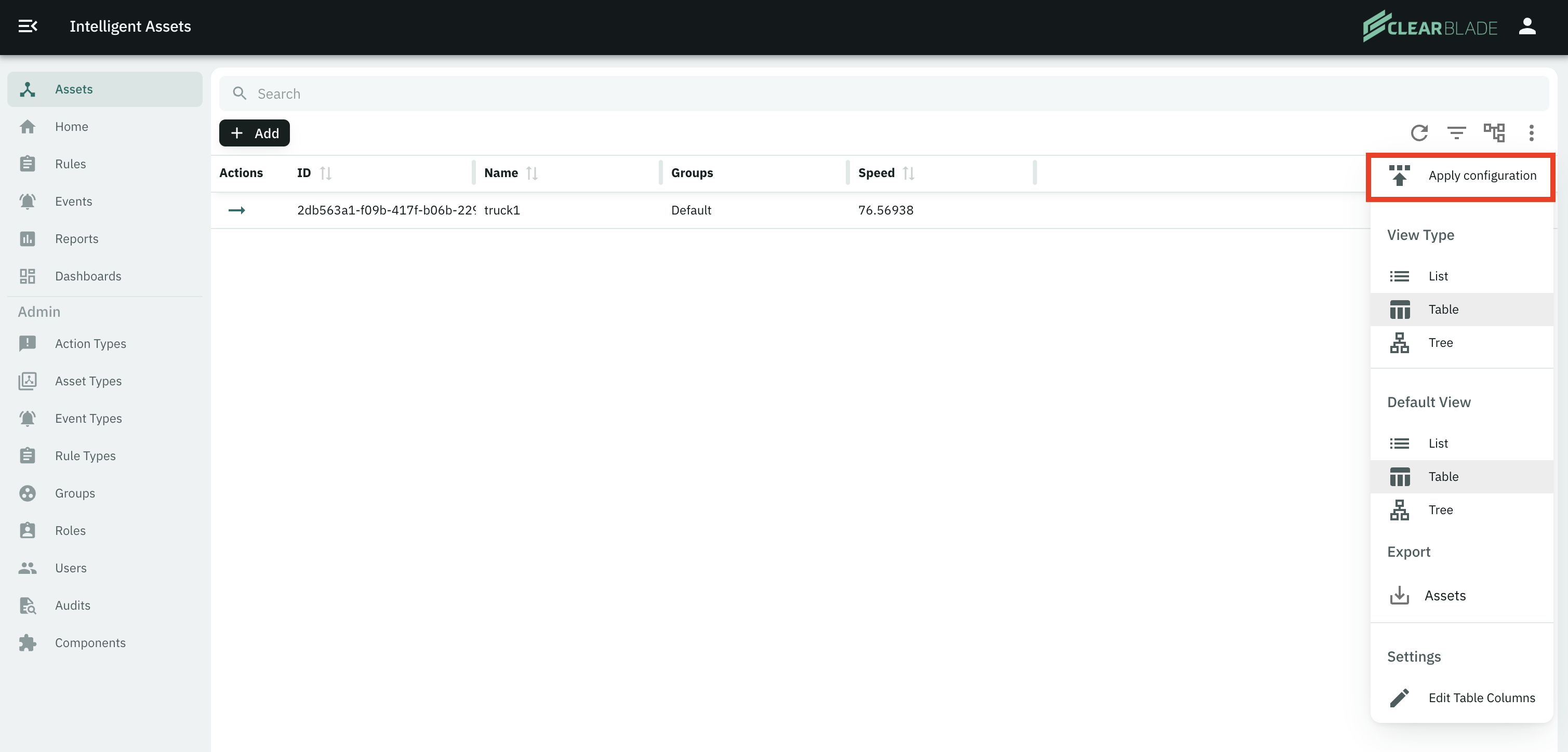
Click the options icon at the top of the asset list.
-
Click the apply configuration item.
-
Select the device type, and choose what to start from.
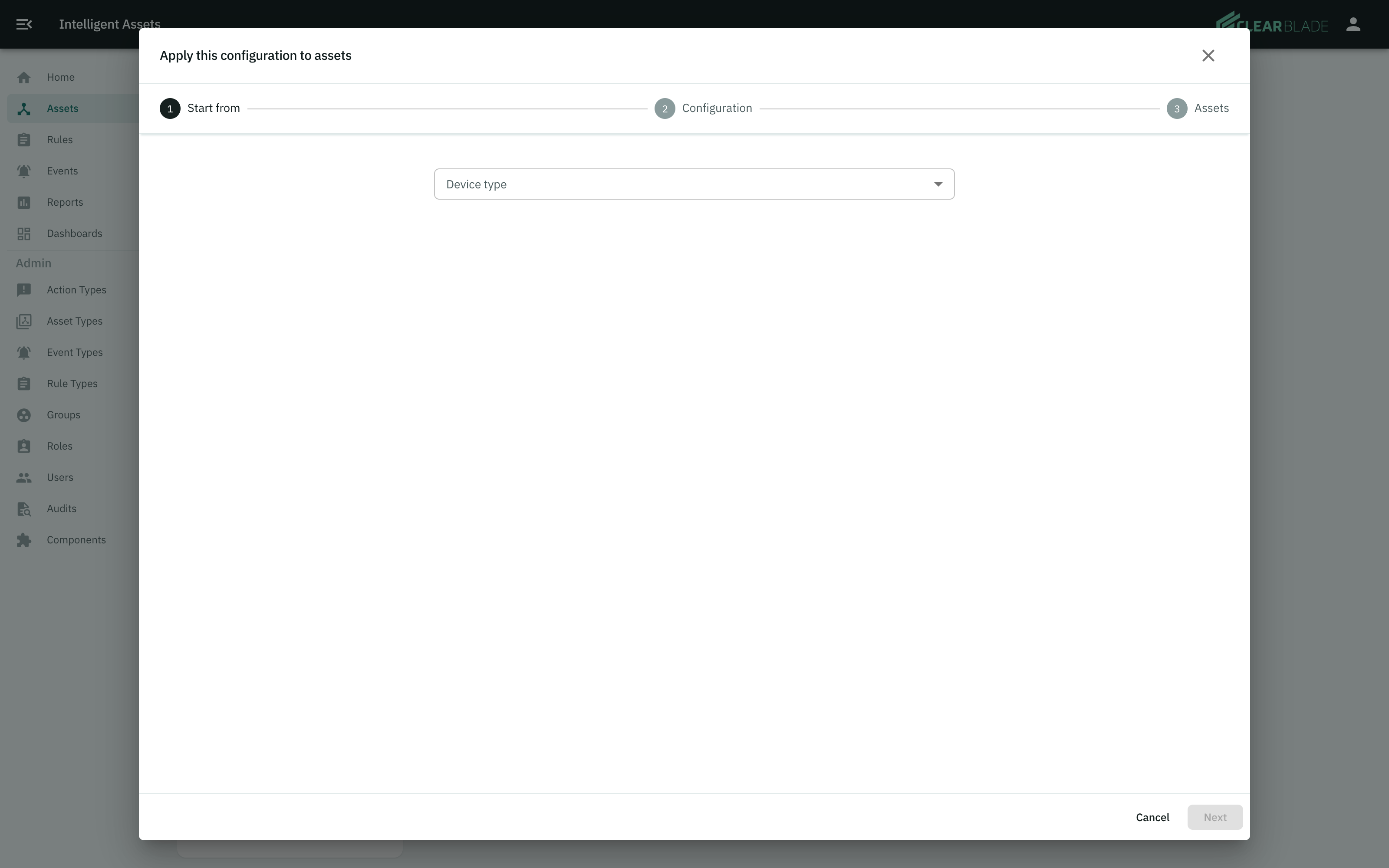
-
Change the settings if you want to, then click Next.
-
Select the assets, then click save.
Each asset you select gets a new configuration version. The version history on each asset records the change.
Delete a template
Click the bin icon in the template's row, then confirm.
A delete removes the template. Configurations already applied to assets stay in place.