
Overview
Remote Edge Shell Sessions let you open an interactive terminal on any Edge connected to your ClearBlade system, without needing SSH access or physical access to the device. Commands are relayed to the Edge over the platform's existing WebSocket connection rather than a real SSH connection, but the experience is functionally the same — you get a live, streaming terminal session. This is useful for troubleshooting device state, checking logs, or running diagnostic commands directly on a piece of Edge hardware, wherever it's deployed.
Core Concepts
-
Edge — a ClearBlade Edge instance connected to your system. A shell session can only be opened against an Edge that is currently connected.
-
Shell session — a single shell process started on the Edge in response to an
open_shellrequest. It lives until the WebSocket connection closes or the session timeout is reached, whichever comes first. Each WebSocket connection carries at most one shell session. -
Session options — parameters supplied when the session is opened: which shell binary to run, working directory, environment variables, and (optionally) the Unix user/group to run as.
-
Command bytes — the
execmessage carries raw input as a UTF-8 byte array, exactly as if it were typed into a terminal. It doesn't need to be a complete command — individual keystrokes are sent as the user types. -
Output stream — everything the shell writes to its terminal, pushed back continuously as base64-encoded
outputmessages. The shell runs on a pseudo-terminal (PTY) withTERM=xterm-256color, so the stream contains what a terminal would show: the prompt, echoed input, stdout and stderr interleaved, and terminal control sequences.
How the Shell Session Protocol Works
A shell session is a sequence of WebSocket messages exchanged in a specific order:
-
The client opens a WebSocket connection to the Edge shell endpoint and authenticates (see WebSocket API reference below).
-
The client sends
open_shellwith the desired session options. This must be the first message sent. -
The server starts the shell process on the Edge and responds with
shell_opened. Wait for this message before sending anyexecmessages. If anexecarrives before the shell is open, the server sends anerror(a session must be open to issue commands) and closes the connection. Sending a secondopen_shellon the same connection fails the same way (session is already open). -
The client sends
execmessages as the user types; the server streams backoutputmessages with the shell's terminal output, base64-encoded. -
The client periodically sends
pingto keep the connection alive; the server replies withpong. This keepalive is unrelated to the shell itself — it only keeps the WebSocket open. -
The session ends when any of the following happens:
-
The client closes the WebSocket.
-
The shell process exits, for example because the user typed
exit. The server sendserrorwith the reason and closes the connection. -
The server hits any other error, including a permission or validation failure. It sends
errorand closes the connection immediately after. -
The session timeout is reached (see Timeouts and session lifetime below).
-
The Edge disconnects from the platform, the platform node holding the WebSocket goes down, or the system is disabled or deleted.
-
One detail that trips people up: the browser WebSocket API doesn't allow setting custom request headers, so authentication can't be passed as a normal header. All of the authentication information instead travels in the Sec-WebSocket-Protocol header, which is the one thing browsers do let you set on a WebSocket handshake.
Fields Reference
Session options are provided in the options object of the open_shell message.
|
Field |
Type |
Required |
Notes |
|---|---|---|---|
|
|
string |
No |
Absolute path to the shell binary to launch, e.g. |
|
|
string |
No |
Working directory for the session. If not set, the shell starts in the Edge process's own working directory. |
|
|
object (string → string) |
No |
Environment variables to set for the session, e.g. |
|
|
number (milliseconds) |
No |
Session lifetime. Minimum |
|
|
boolean |
No |
Set to |
|
|
number |
No, unless |
Unix UID to run the shell process as. |
|
|
boolean |
No |
Set to |
|
|
number |
No, unless |
Unix GID to run the shell process as. |
By default, the shell runs as the same Unix user and group as the Edge process. Switching to a different UID/GID requires the Edge process to have permission to do so; in practice, the Edge must be running as root. UID/GID options are ignored on macOS Edges.
Timeouts and session lifetime
Two independent mechanisms can end a session, and they're easy to conflate:
-
The session lifetime — each shell session has a single lifetime limit. If the
timeoutsession option is set (minimum10000, i.e. 10 seconds), it's used as the session's lifetime. If it's omitted or0, theRemoteShellSessionTimeoutMinutesplatform setting is used instead. That setting is read from the configuration of the platform node handling the WebSocket, not the Edge's configuration; it defaults to 1440 minutes (24 hours) and exists mainly to prevent shell sessions from being left open indefinitely by accident. When the lifetime is reached, the shell process on the Edge is killed, the server sends anerrormessage, and the WebSocket is closed. -
The WebSocket idle timeout — independent of the shell session itself, the WebSocket connection is closed if the client doesn't send a
pingat least once every 2 minutes.
Whichever of these is hit first ends the session.
Using the Console
You don't need to write any WebSocket code to use this feature interactively — the console has a built-in terminal.
-
Go to the Edges page in the console.
-
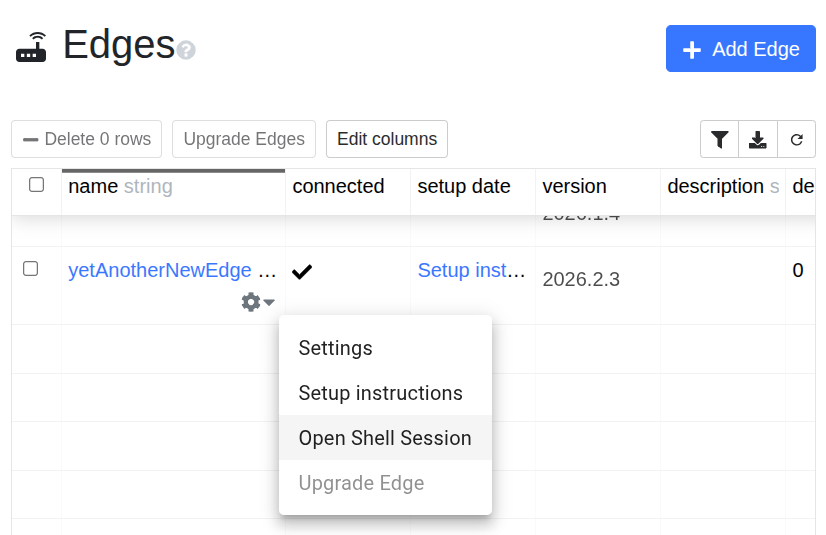
Find the Edge you want a session on, open its row actions menu, and select Open Shell Session. This option is disabled if the Edge isn't currently connected.
-
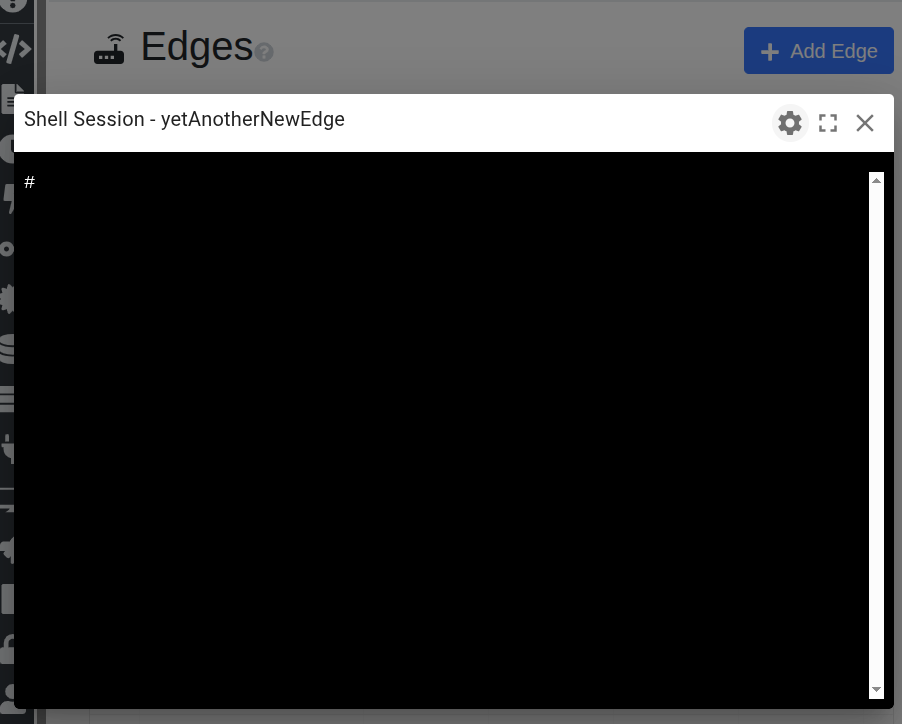
A terminal modal opens for that Edge. It connects automatically and opens the shell.
-
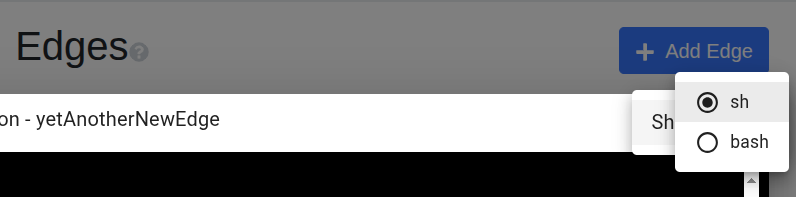
Use the gear/settings icon in the modal's title bar to choose the shell type — sh or bash.
-
Use the fullscreen icon to expand the terminal, and the close icon to end the session.
The console keeps the connection alive automatically and will attempt to reconnect if the WebSocket drops, showing "Shell session closed. Attempting to reconnect..." while it retries. If the connection can't be established at all, you'll see an error dialog telling you to check that the platform is up and the Edge is connected.
Two things the console doesn't expose today: it only lets you choose between sh and bash — there's no UI for setting a working directory, environment variables, or a specific UID/GID; and it doesn't send any message to the Edge when you resize the browser window, so the shell's terminal size on the Edge side isn't kept in sync with your browser terminal's size. If you need any of that, connect directly using the WebSocket API below.
Opening a shell session requires permission to administer the Edge remotely. See Permissions, Auditing, and Disabling Remote Shells below.
Permissions, Auditing, and Disabling Remote Shells
Permissions
Opening a shell session requires Create permission on the edgeremoteadmin resource for the target Edge. Developers have this automatically. Users can be granted it through a role.
Permission is checked when the WebSocket connects and again on every open_shell and exec message. Because sessions can stay open for a long time, revoking the permission ends an open session the next time input is sent.
Auditing
Each time a shell is opened, an audit entry with action OPEN_REMOTE_SHELL is recorded against the Edge, including the session options that were used.
Disabling remote shell access
Remote shells can be turned off with the DisableRemoteCommandExec setting in the [Security] section of the configuration. It's checked on both sides of the connection:
-
On a platform node: that node refuses to open shells or relay input, returning
remote shell command execution is disabled on this node. Because the setting is rechecked on everyexec, enabling it also ends existing sessions on that node the next time input is sent. -
On an Edge: the Edge refuses to open shells, returning
remote shell command execution is disabled on this edge, and stops accepting input for existing sessions.
DisableRemoteCommandExec can't be changed through remote Edge configuration updates; it has to be set in the Edge's local configuration. It also disables other remote command execution on the Edge, not just shell sessions.
WebSocket API Reference
Authentication and connection
Open a WebSocket connection to the /edge_shell endpoint on your platform's broker WebSocket listener, for example wss://<your-platform-host>:8904/edge_shell. 8904 is the default secure WebSocket port; your deployment may expose it differently.
Since browsers don't allow custom headers on a WebSocket handshake, all authentication information is passed via the Sec-WebSocket-Protocol header, as a comma-separated list in this order:
clearblade, <auth token>, <system key>, <edge name>
The list must contain exactly four entries, and the first must be clearblade. A system alias can be used in place of the system key. If the header is malformed, the handshake is rejected, or the server sends an error (for example, missing Clearblade-Systemkey header) and closes the connection.
The Edge must be connected to the platform when you connect. Otherwise the server sends an error (edge is not connected to platform: ...) and closes the connection.
Client messages
open_shell — must be the first message sent. Opens the shell on the Edge.
{
  "type": "open_shell",
  "options": {
    "shell": "/bin/bash",
    "cwd": "/mydir",
    "env": { "MY_VAR": "value" },
    "timeout": 10000,
    "has_uid": true,
    "uid": 10,
    "has_gid": true,
    "gid": 3
  }
}
exec — sends input to the shell. Doesn't need to be a full command; individual keystrokes work fine. The command field is a UTF-8 byte array. This example sends ls followed by Enter:
{
  "type": "exec",
  "command": [108, 115, 10]
}
ping — keeps the WebSocket connection alive. Send at least once every 2 minutes.
{
  "type": "ping"
}
Server messages
shell_opened — confirms the shell is ready. Wait for this before sending exec.
{
  "type": "shell_opened"
}
output — streamed terminal output from the shell, base64-encoded.
{
  "type": "output",
  "data": "NTE4NjM4YmFkYmMzOi9teWRpciMg"
}
error — sent when the server encounters an error. The connection is closed immediately afterward.
{
  "type": "error",
  "error": "error: could not receive json message: EOF"
}
pong — reply to a ping. Can be ignored, or used to confirm the connection is still alive.
{
  "type": "pong"
}
Examples
Opening a basic interactive session
Connect to /edge_shell with the Sec-WebSocket-Protocol set to clearblade, <token>, <system key>, <edge name>, then send:
{
  "type": "open_shell",
  "options": {
    "shell": "/bin/bash"
  }
}
Wait for shell_opened, then send exec messages as the user types, and render each output message's base64-decoded data in a terminal. This is exactly what the console's built-in terminal does.
Running the shell as a specific user
By default the shell runs as the same user as the Edge process. If the Edge runs as root, you can drop privileges by running the shell as an unprivileged UID/GID instead:
{
  "type": "open_shell",
  "options": {
    "shell": "/bin/sh",
    "has_uid": true,
    "uid": 1000,
    "has_gid": true,
    "gid": 1000
  }
}
Setting a working directory and environment variables
Useful for running a diagnostic script that expects to start in a specific directory with specific environment variables already set:
{
  "type": "open_shell",
  "options": {
    "shell": "/bin/bash",
    "cwd": "/opt/myapp",
    "env": {
      "LOG_LEVEL": "debug"
    }
  }
}
Keeping a long session alive
If you expect the session to sit idle for a while between commands (e.g. while a user reads output), send a ping on a timer shorter than 2 minutes — every 10 seconds is a safe, low-overhead interval:
{
  "type": "ping"
}
Without this, the WebSocket connection — and the shell session behind it — will be closed after 2 minutes of no ping traffic, regardless of whether the shell process itself is still doing anything.
Troubleshooting and FAQs
-
Is this a real SSH connection? No. Commands are relayed over RPC through the platform's existing WebSocket connection, not through an actual SSH process. Functionally it behaves the same way, but it's not SSH, and there's no SSH key exchange or SSH-specific tooling involved.
-
Nothing happens when I type into the terminal. This usually means the WebSocket connection was closed. Open your browser's devtools and check the console/network logs for a close or error event — a common cause is the Edge not being connected to the platform at all. If the server rejected something, it sends an
errormessage just before closing, so check the WebSocket frames for it. Common errors includeedge is not connected to platform,a session must be open to issue commands, a permission-denied error, andremote shell command execution is disabled on this node/on this edge. -
Can I use this to transfer files (like scp or sftp)? No. The protocol only supports sending keystrokes and receiving text output; there's no file-transfer message type.
-
Does the console let me set environment variables, a working directory, or a UID/GID? No — the console UI only lets you pick between
shandbash. Those other options are only available if you connect directly via the WebSocket API. -
I resized my browser window — did the shell's terminal size on the Edge update too? No. Today, nothing is sent to the Edge when the terminal is resized, so the shell's own idea of terminal size (rows/columns) can get out of sync with what's displayed in the browser.
-
How long does a shell session stay open? Until the WebSocket closes, the shell exits, or the session lifetime runs out. The lifetime is your
timeoutoption if you set one (minimum 10 seconds), otherwise theRemoteShellSessionTimeoutMinutesplatform setting (default 24 hours). The connection is also closed for lack of apingwithin 2 minutes, and sessions end if the Edge disconnects or the system is disabled or deleted. -
What permission do I need to open a shell session? Create permission on the
edgeremoteadminresource for the Edge. Developers have it automatically; users can be granted it through a role. -
Can I test this with a generic tool like Postman instead of writing a client? You can open the connection, but the input/output is raw bytes and base64, not human-readable, so you won't get much use out of it without a client that encodes/decodes and renders it as a terminal.
-
Why do I see my own keystrokes in the output? The shell runs on a pseudo-terminal, which echoes input back just like a local terminal does. A terminal emulator such as xterm.js renders this correctly; a plain log of
outputmessages will show the echoed characters. -
Can remote shell access be turned off? Yes. Set
DisableRemoteCommandExec = truein the[Security]section of the Edge's or platform node's configuration. See Disabling remote shell access.