Developers can enable two-factor authentication (2FA) for all users in their IA system. To do so, follow these steps:
Developer console-side setup -
-
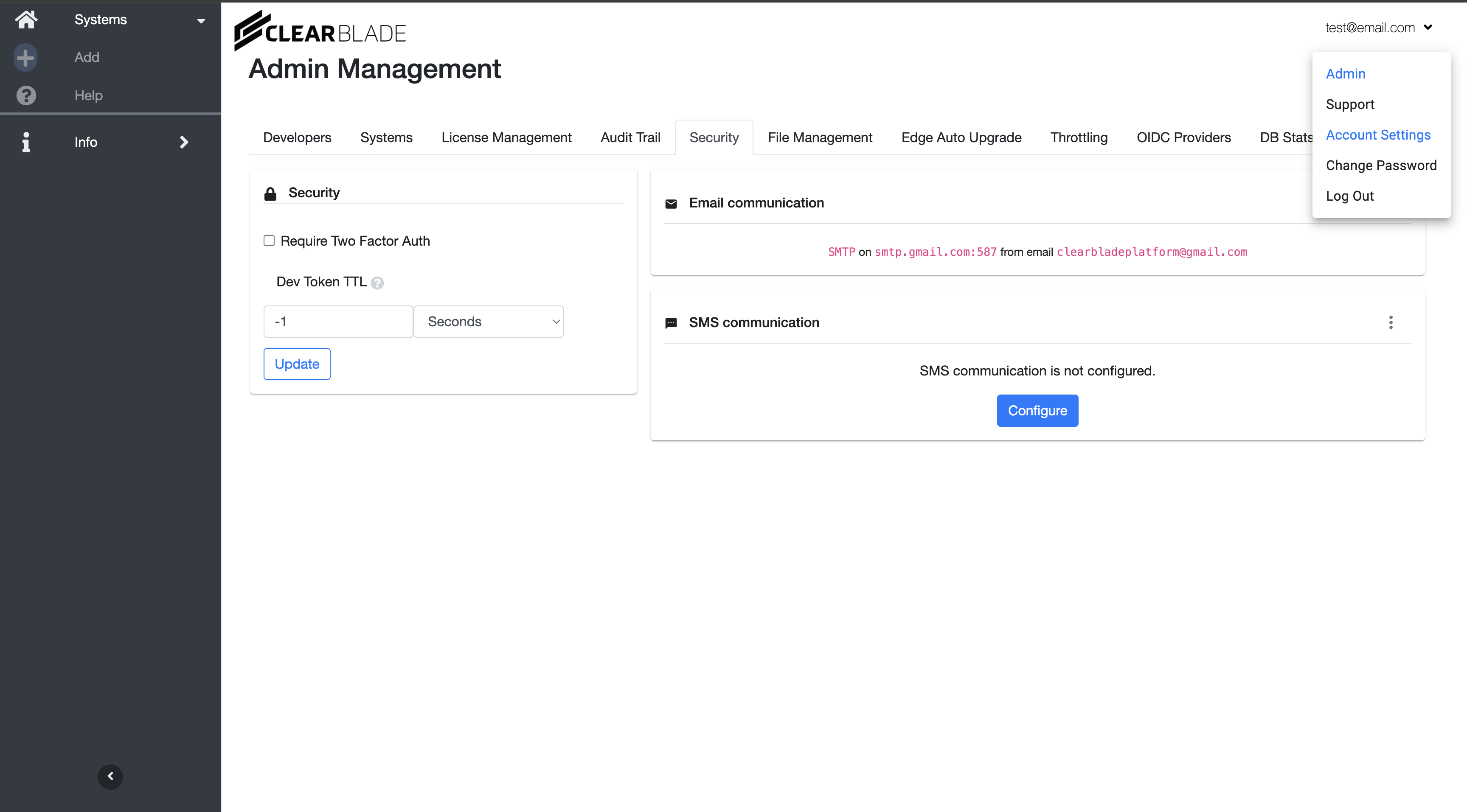
Access your instance’s developer console, click your email in the top-right corner, and navigate to the
Adminpage (note: admin access is required to see this option). Once there, open the Security tab and add your Email and/or SMS provider credentials. This step is necessary to enable 2FA.
-
Once the provider credentials are added, go to your IA backend system settings. In system settings, go to the
Securitysection and enable the Require Two Factor Auth checkbox. This will enable two factor authentication for all the users in your system.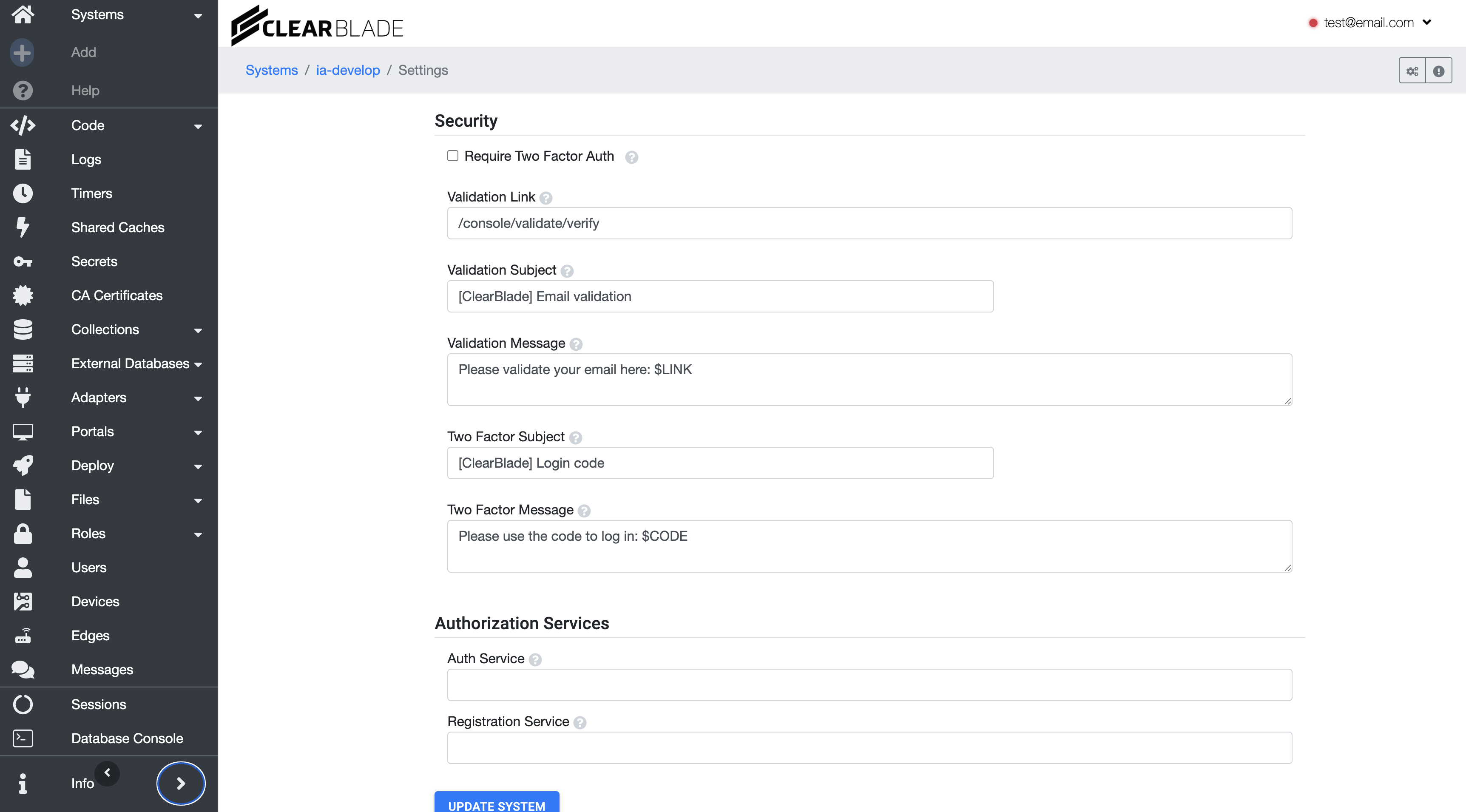
-
After enabling 2FA, you must assign a two-factor method (Email and/or SMS) to your existing users. To do this, run the
add2FAMethodToUserscode service in your IA system backend, which will assign a method to all current users. Make sure the method you assign corresponds to a provider that has already been configured. The code service requirestwo_factor_methodparam with one of these values --
sms: For sending OTPs via SMS only
-
email_sms: For sending OTPs via Email and SMS
-
email: For sending OTPs via Email only
-
-
Setup is now complete. Whenever a user logs in, an OTP will be sent to their chosen 2FA method.
IA 2-Factor Authentication -
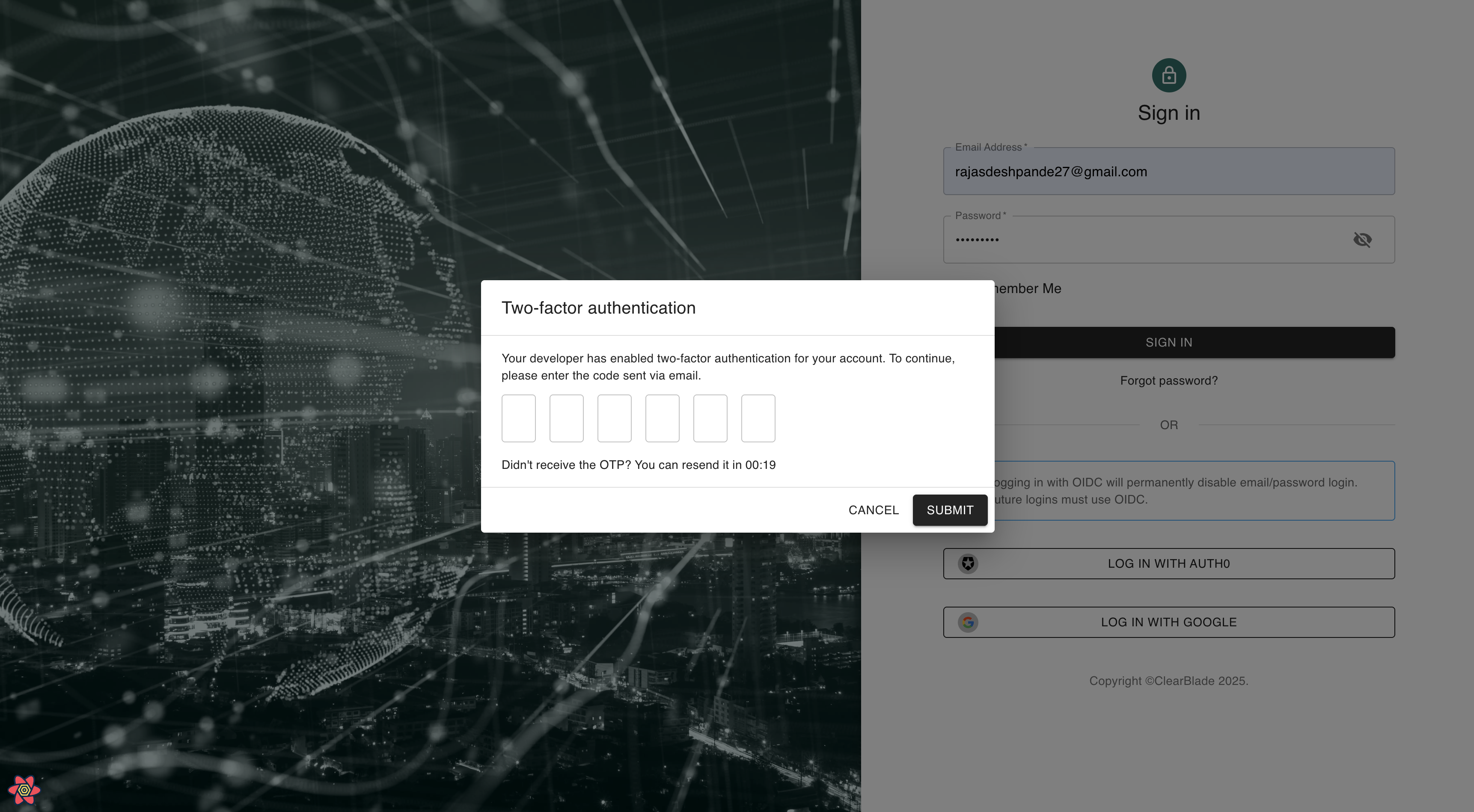
When a user logs in, they will see this modal to enter the OTP. If needed, they can resend the OTP after 30 seconds.
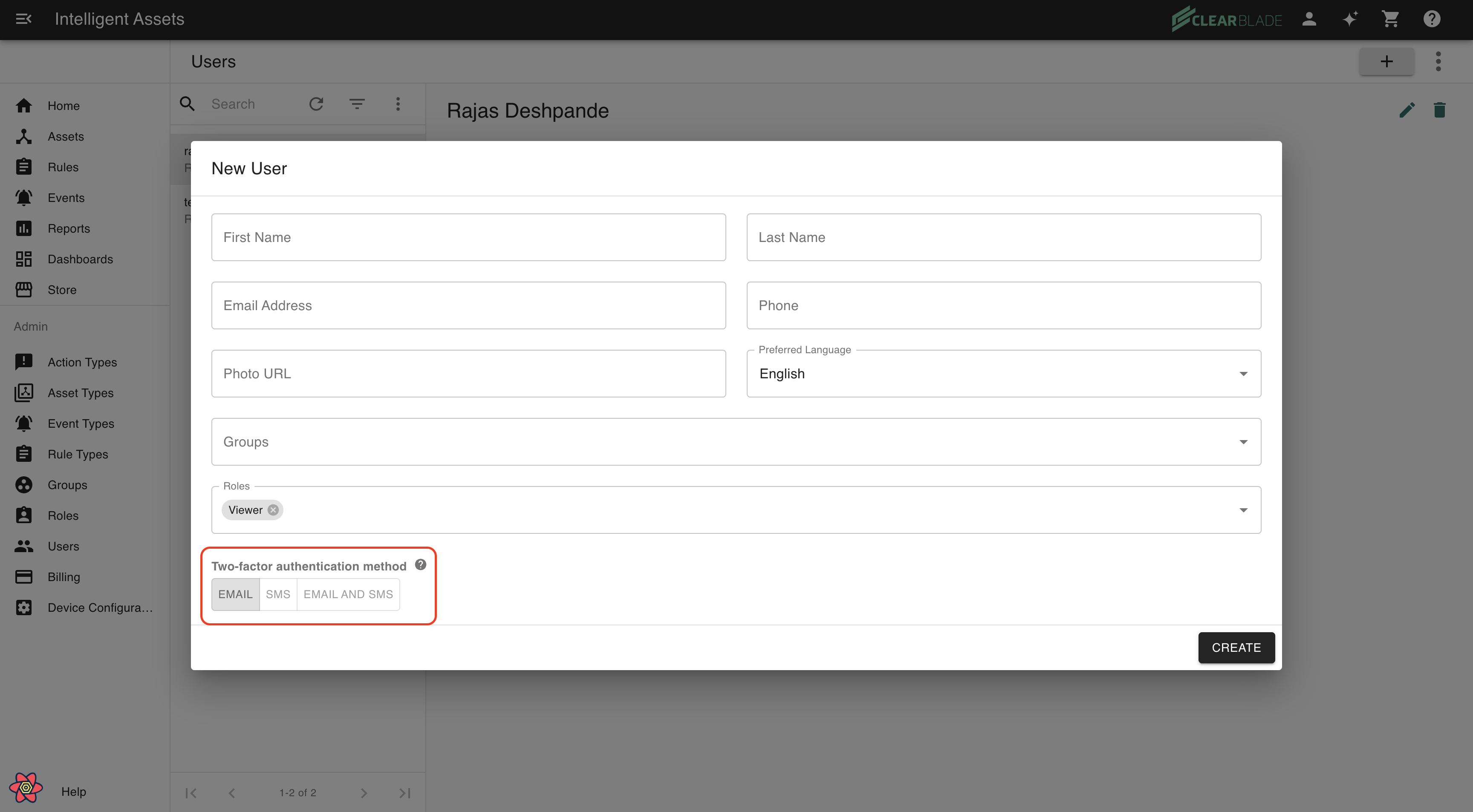
Adding a new IA user -
When adding a new user, if 2FA is enabled, IA admins will see a new button group that allows them to assign a two-factor authentication method to the user.